How to change how weekends are displayed
Weekends are handled by the design you choose, plus one layout setting. Some designs shade the weekend columns, some paint Sundays red, and some leave every day identical — picking the right design is the main move.
How to change how weekends are displayed sections
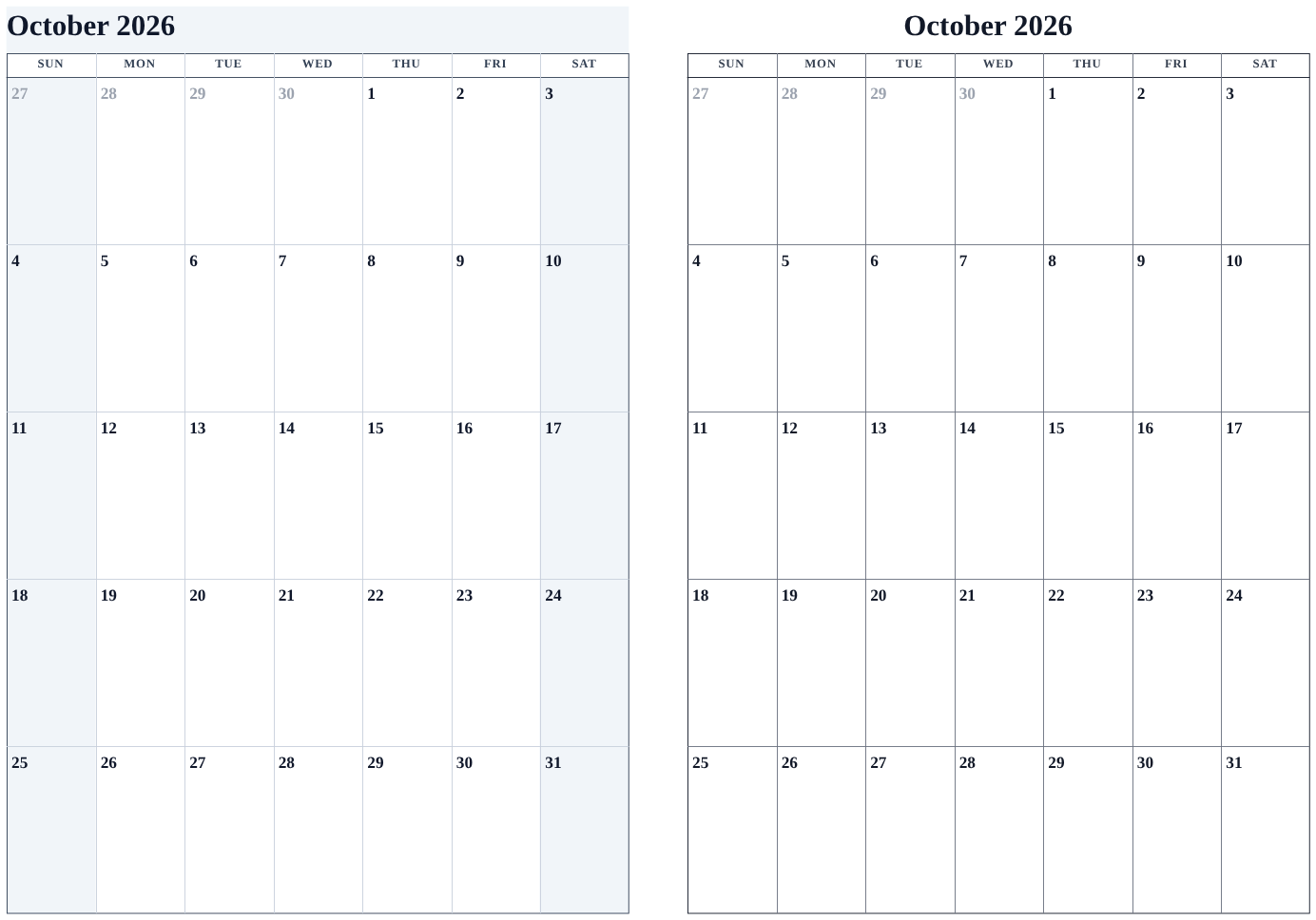
Pick a design with weekend treatment
Open the Templates tab and look for:
- Office Weekend Shaded — light gray fills on Saturday and Sunday columns, the convention on European office wall calendars. It pairs especially well with week numbers.
- Classic Red Sundays — Sundays drawn in red, the traditional look. Classic Red Dates extends the red to every date numeral.
Hovering a card previews the weekend treatment on your own month instantly.
Move the weekend columns
- Open the Layout tab.
- Under Page setup, set Week starts on to Sunday or Monday.
- Sunday-start puts the weekend at the left edge and the right edge of each row; Monday-start groups Saturday and Sunday together as a block on the right. With shading on, that block reads as one visual unit.
Restyle around the weekends
The style editor's colors, fonts and borders apply to the whole design rather than to weekend columns alone. To change how weekends look specifically, switch to the design whose weekend treatment you like, then use How to change the colors of your calendar to tune everything around it.
Tips
- Shaded weekends print well in black and white when the fill is a light gray — which is exactly what Office Weekend Shaded uses.
- Combine weekend shading with Show week numbers for a planner-style grid that makes long stretches easy to count.
Mini-FAQ
- Can I shade only Sundays, or add my own weekend days?
- The weekend definitions come from each design — Saturday-plus-Sunday or Sunday-only — and cannot be edited per day yet.