Can I change the design of my calendar?
Yes — that is the fun part. Every calendar can be redesigned in two ways: you can switch to a different ready-made design, or you can edit an existing design to match your needs. Both happen in the Templates tab, and both update the live preview straight away.
Can I change the design of my calendar? sections
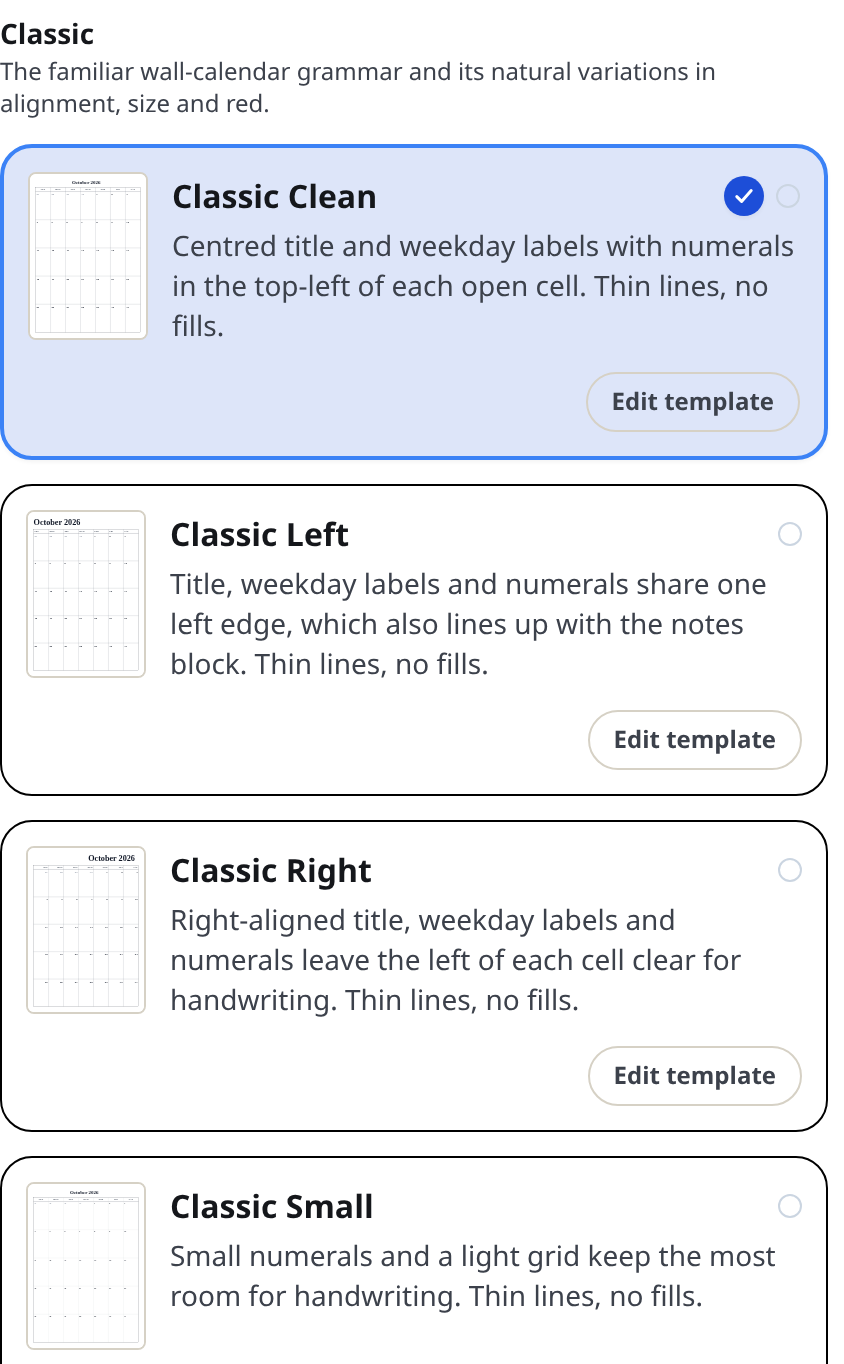
Two ways to change a design
1. Pick a different design. The Templates tab lists 28 designs grouped into 8 sets — Classic, Office, Planner, Modern, Ink Saver, Family and Classroom, Decorative and Gift, and Month Colour. Hovering a card previews that design on your calendar. Clicking selects it. Each design is a curated look: typography, colors, lines and corners chosen to work together.
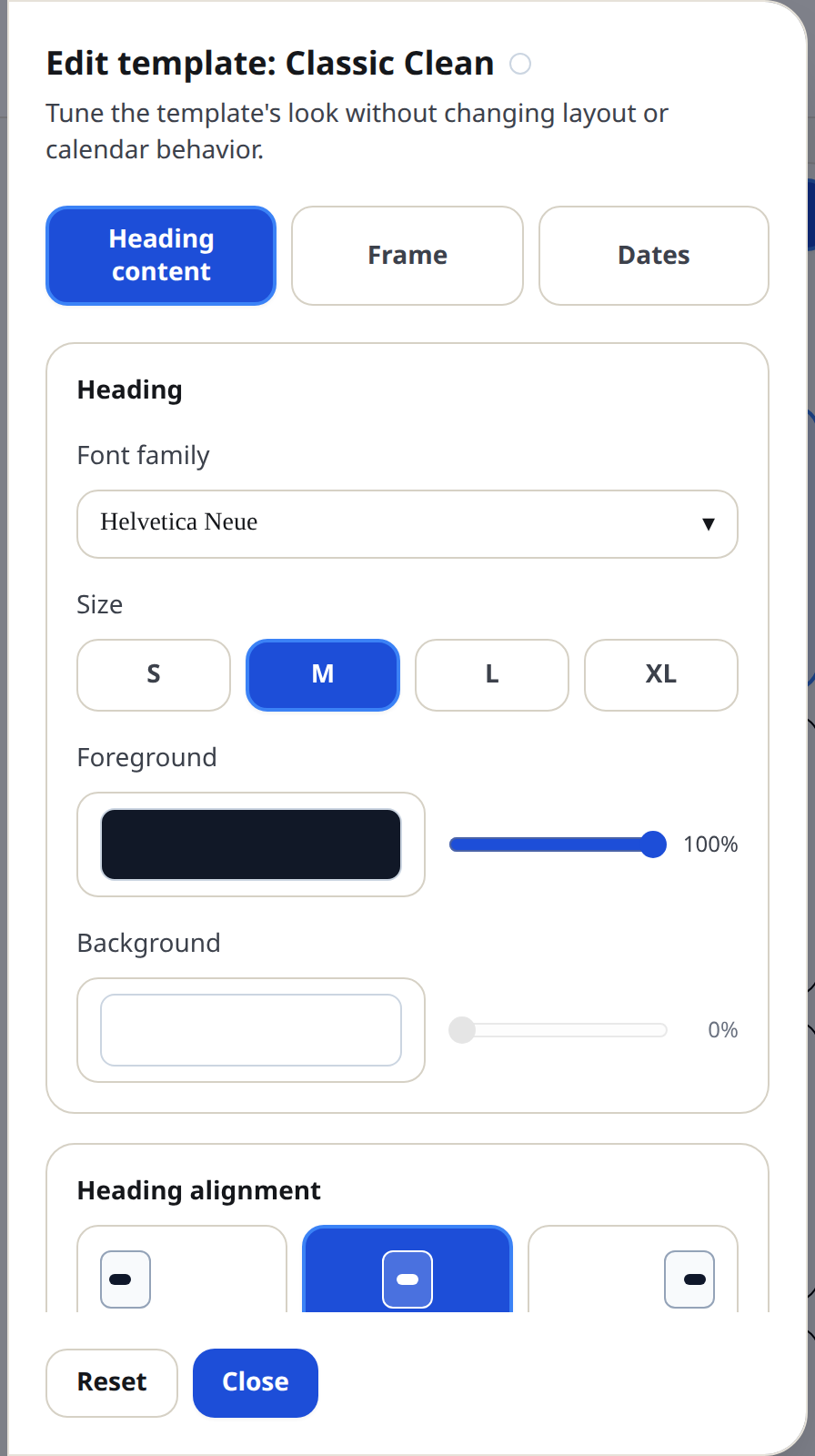
2. Edit the design you have. Press the Edit template button on a design card. A style editor opens with three tabs:
- Heading content — the page title: its font, size, colors, alignment, month name format and letter case.
- Frame — the weekday labels and the calendar's outer border: fonts, colors, alignment, border color, line weight and corner radius.
- Dates — the date numbers: font, size, position in the cell, colors, and the inner grid lines.
While the editor is open, the preview shows your changes as you make them. Press Close to keep them, or Reset to put the design back to its original look.
How to know what you changed
A small green dot appears on a design card once you have modified it. Hover the dot to see a list of exactly what changed — "Heading size", "Frame border color" and so on.
Tips
- Changes are per design. Editing "Office Slate" does not touch "Modern Minimal".
- If you overshot, Reset in the editor puts the current design back to its defaults.
- Closing the editor with Escape or by clicking outside discards your draft — only Close applies it.
Mini-FAQ
- Do style changes survive printing and downloading?
- Yes. Print, PDF and PNG all use the styled calendar you see in the preview.