How to edit a calendar template step by step
This is the full walk-through for editing a calendar template. The whole job happens in the Templates tab and its style editor, and the preview updates on every click, so you cannot break anything.
How to edit a calendar template step by step sections
Step-by-step: edit a calendar style
- Open the Templates tab in the generator panel.
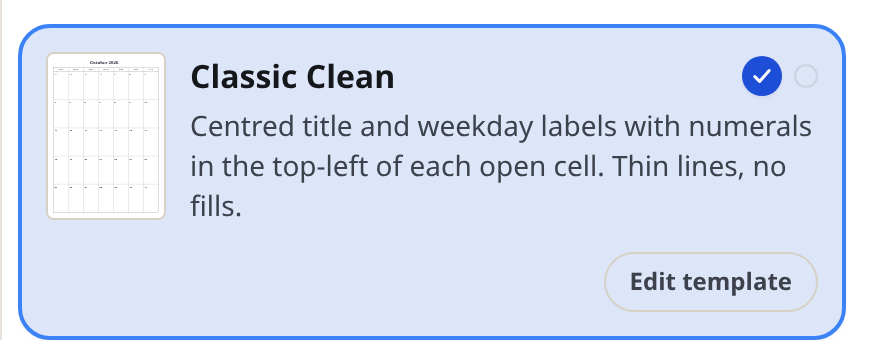
- Scroll the design list. Designs are grouped under set headings such as Classic, Office or Decorative and Gift, each card showing a small thumbnail and a short description.
- Hover a card to preview that design on your calendar. Click the card to select it.
- Press Edit template on the card. The style editor slides in, titled "Edit template" with the design's name.
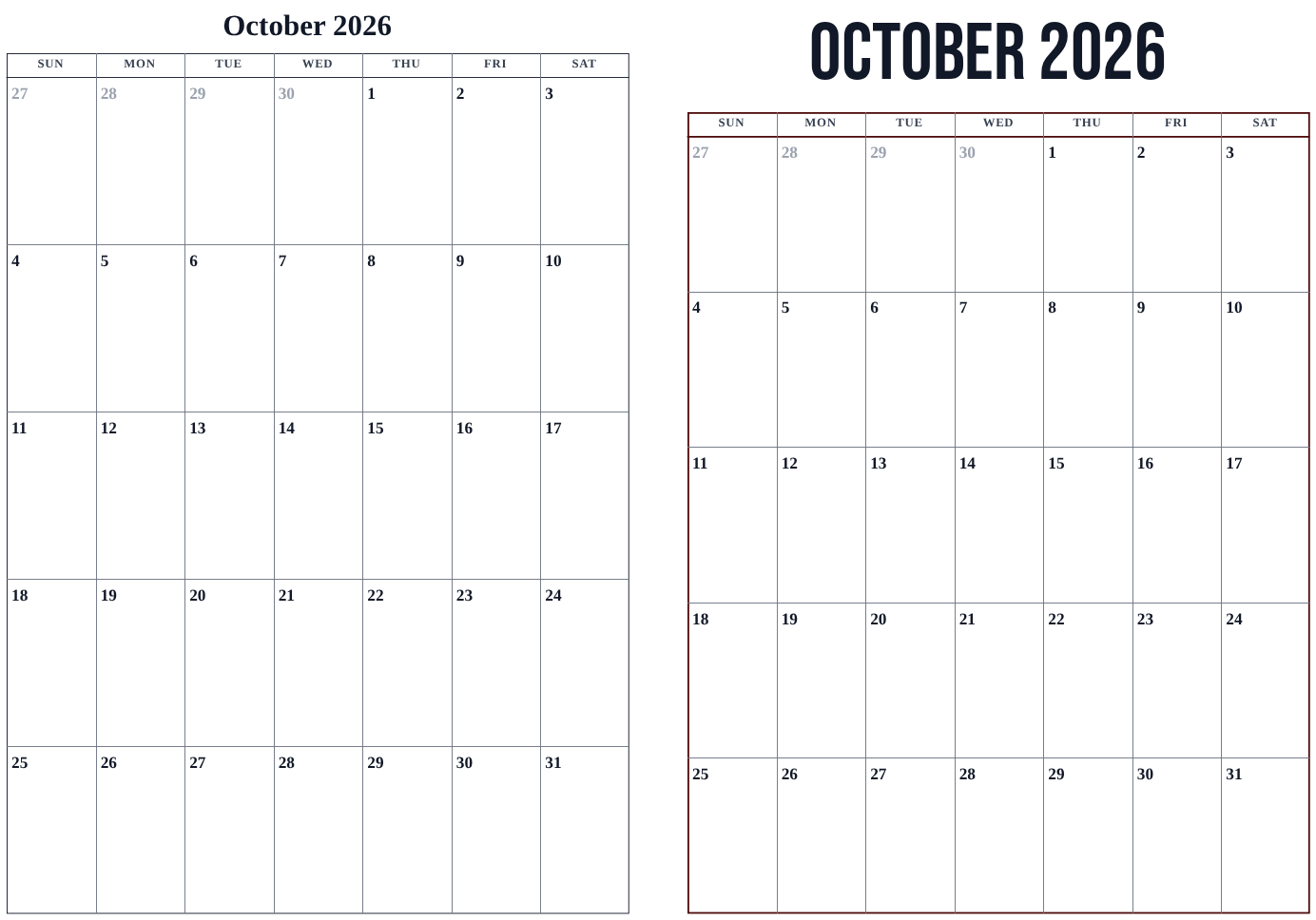
- On the Heading content tab, edit the page title: Font family, Size (S, M, L, XL), Foreground and Background colors, Heading alignment, Month name format (Short or Full), Letter case (Default or Uppercase) and the Accent color.
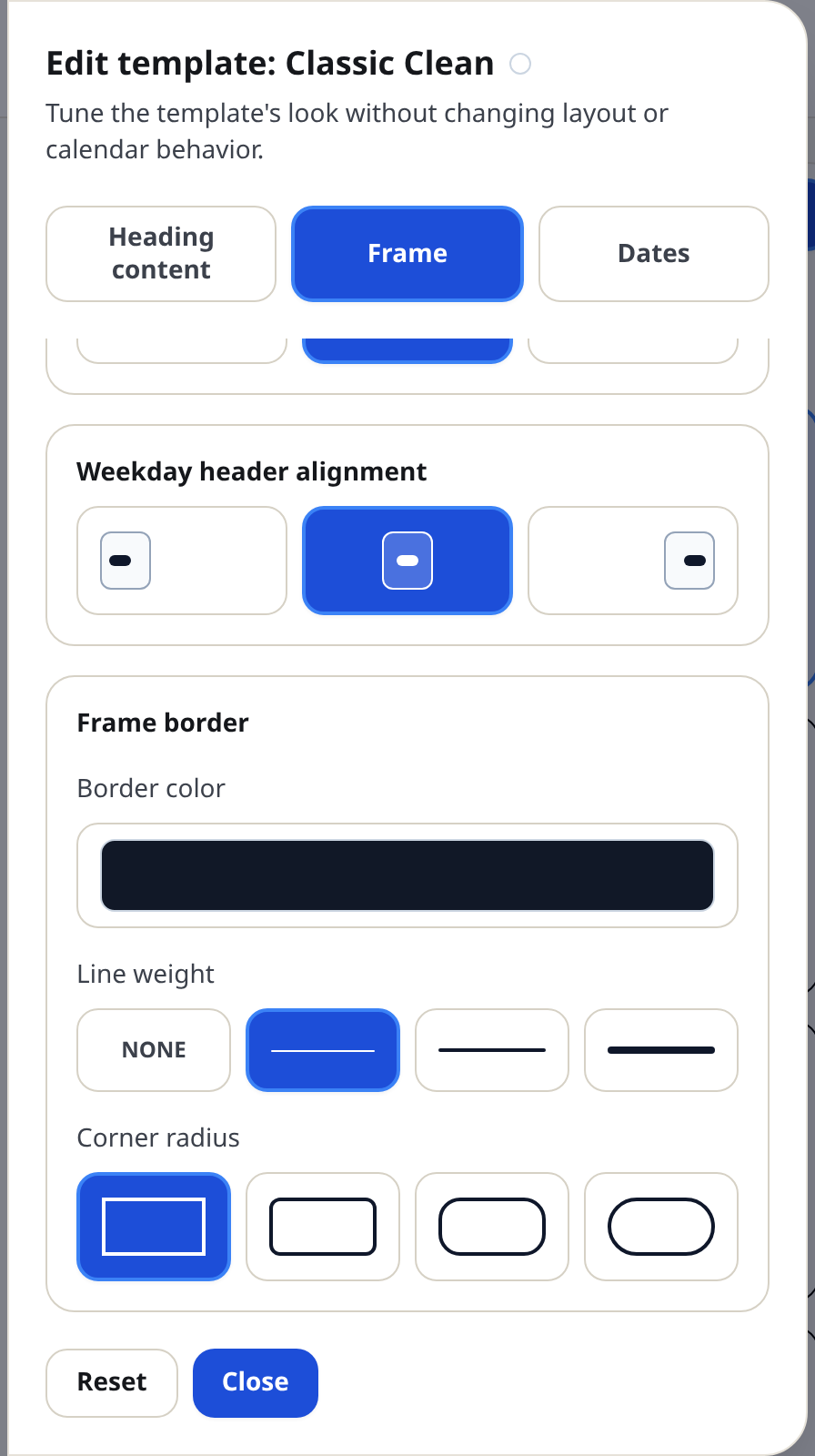
- On the Frame tab, edit Frame content (the weekday labels, week numbers and notes text): its Font family, Size and colors. Then set Month header alignment and Weekday header alignment, and style the Frame border: Border color, Line weight (None, Thin, Medium, Thick) and Corner radius (Square, Subtle, Rounded, Soft).
- On the Dates tab, edit Date content: Font family, Size, Position (a three-by-three grid that places the number inside its cell), Foreground and Background. Then style the Date border — Border color, Line weight and Corner radius — and set the Adjacent months color for the faded days from neighboring months.
- Went too far? Press Reset to return the design to its original look, or tweak individual controls back.
- Press Close to apply your changes. The card now shows a green dot; hover it to see what changed.
- Print or download as usual — the styled calendar is what prints.
Tips
- Make one change at a time and watch the preview. It is the fastest way to learn what each control does.
- Only Close applies your edits. Escape and clicking outside the editor discard the draft on purpose.
- Colors you pick are remembered as recent colors in the palette for the rest of the session.
Mini-FAQ
- Can I edit a design without selecting it first?
- Yes. Edit template works on any card; applying the edits also selects that design.
- Can I save my edited design?
- Press Save above the preview to download a calendar file. Reopening it later brings back the design and every edit.