How to save a calendar and open it again
Finished calendars are worth keeping — next year's birthday planner starts from this year's. The Save button downloads your calendar as a small file on your device, and Load brings it back exactly as it was, style edits included.
How to save a calendar and open it again sections
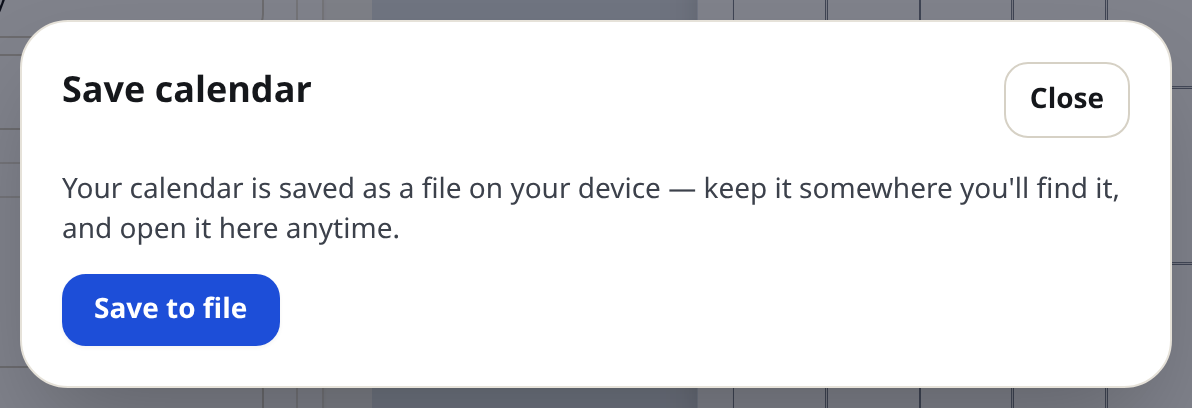
Save your calendar
- Set up the calendar completely — format, dates, design, style edits, notes, holidays.
- Press Save (the icon at the top right of the preview) to open the "Save calendar" dialog.
- Press Save to file. Your browser downloads a calendar file (`.json`) — keep it somewhere you will find it, with whatever name your browser suggests or a folder of your own.
Nothing is uploaded. The file is yours: copy it to another computer, keep it in a backup, or email it to yourself.
Open a saved calendar
- Press Load next to Save.
- In the "Load calendar" dialog, press Open calendar file… and pick your `.json` file — or simply drag the file onto the dialog.
- The generator restores the whole calendar and tells you what it loaded, including the name and the date you saved it.
Tips
- The saved file keeps your edited design, notes size, week start, paper size — everything. Treat it as a reusable template for next month.
- Files only open in this generator, so there is no risk of a stranger's file changing anything but your own calendar.
Mini-FAQ
- Is there online storage?
- No. Saving is a plain file on your device, which is why there is no account and nothing to expire.