How to change calendar borders and frames
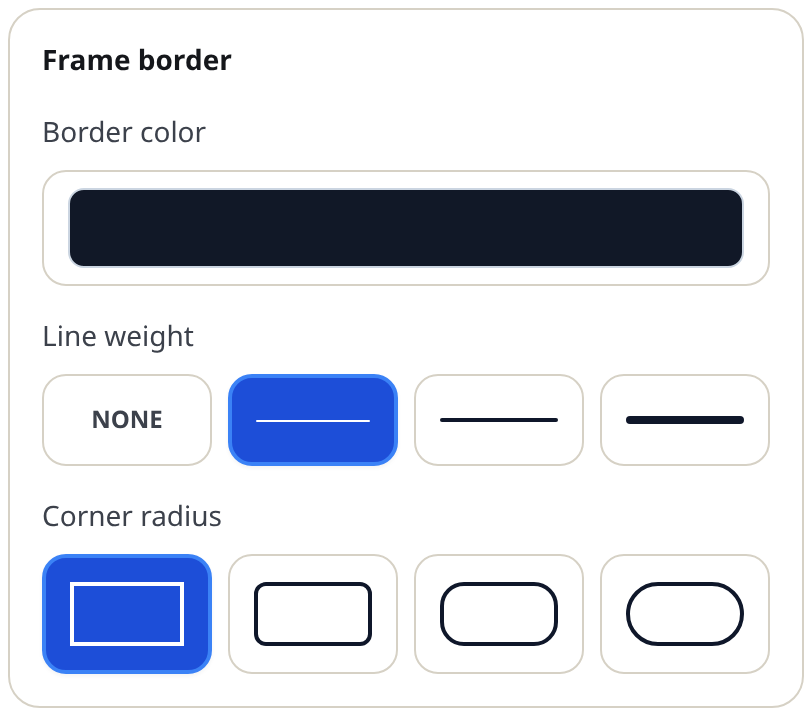
There are two line systems on a calendar page, and the style editor keeps them separate: the frame is the outer border around the whole grid, and the date border is the inner grid between the day cells. Each has its own color, line weight and corner radius.
How to change calendar borders and frames sections
Change the outer frame
- Press Edit template on your design and open the Frame tab.
- In the Frame border group, set Border color. The palette offers fixed swatches, your recent colors and a grid of hues.
- Choose a Line weight: None, Thin, Medium or Thick. None removes the frame entirely for a borderless look.
- Choose a Corner radius: Square, Subtle, Rounded or Soft. Square is formal; Soft is friendly.
Change the inner grid
- Open the Dates tab and find the Date border group.
- Set its Border color — match the frame for a calm page, or pick a tint for a softer grid.
- Set its own Line weight and Corner radius. They start out following the frame's values.
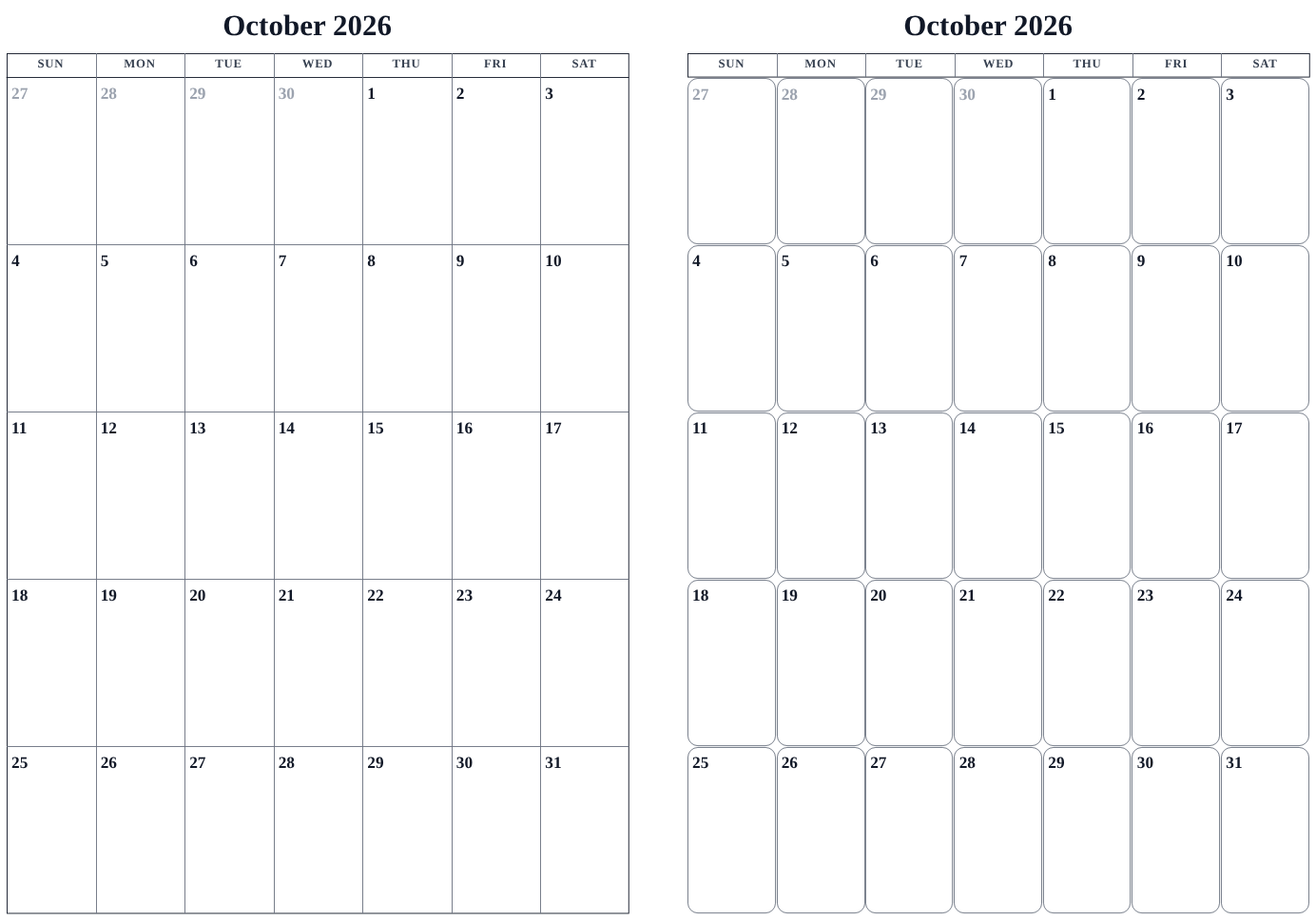
The borderless-cells trick: a rounded corner radius on the date borders renders the dates as separate rounded cells with thin gaps between them — a modern card-per-day look, even without visible grid lines.
Tips
- The thinnest line is thin — for a hairline look, keep the weight at Thin and choose a lighter color instead.
- Frame lines print better with some contrast. A very pale frame can vanish on a home printer; check the print preview.
- Setting line weight to None on both systems gives a clean, unfenced grid that suits minimalist planners.
Mini-FAQ
- Can the grid be dashed or dotted?
- Not as a setting you can pick — designs choose line character, and you control color, weight and corners.