How to change the way empty cells are treated
A 28-day February leaves rows spare, and a six-week stretch of cells can look empty at the bottom of a page. The Month grid layout setting decides what happens to that space on Multi-month and Yearly calendars.
How to change the way empty cells are treated sections
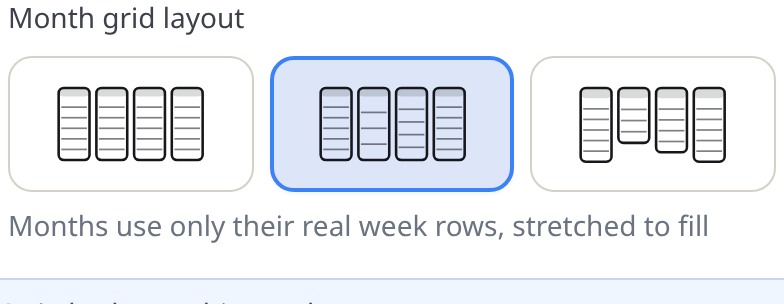
The three month grid layouts
Open the Layout tab. The Month grid layout control appears on the Multi-month and Yearly formats, with three options:
- Consistent 6 rows — every month uses the same six-row grid. Shorter months leave empty rows at the bottom. All months line up like ruled paper; this is the tidy, formal look, and the default for Yearly.
- Fill available height — months use only their real week rows, stretched to fill each block. No empty rows, and every row gets maximum height; the default for Multi-month.
- Natural row height — months keep a shared row height, so shorter months simply become shorter blocks. An honest middle ground: nothing is stretched, nothing is wasted.
Each option explains itself in the generator with a short helper line and a small diagram.
Empty cells on a plain Monthly calendar
Monthly has one natural grid, so there is no layout setting — instead you control how its edge cells look:
- Show adjacent months fills the leading and trailing cells with the neighboring month's days.
- A rounded date corner radius (Dates tab → Date border) turns the cells into separated rounded cards, which changes how empty gaps read.
Tips
- Yearly + Consistent 6 rows + week numbers is the classic annual wall planner.
- If a Multi-month page looks ragged, switch from Fill available height to Natural row height.
Mini-FAQ
- Why do some months show six rows and some five?
- That is Fill available height doing its job — months only occupy the weeks they really use.