How to change adjacent-month dates
Those grayed-out days before the 1st and after the month's end are called adjacent months — days that belong to the previous or next month. You decide whether they appear at all, and how loud or faint they look.
How to change adjacent-month dates sections
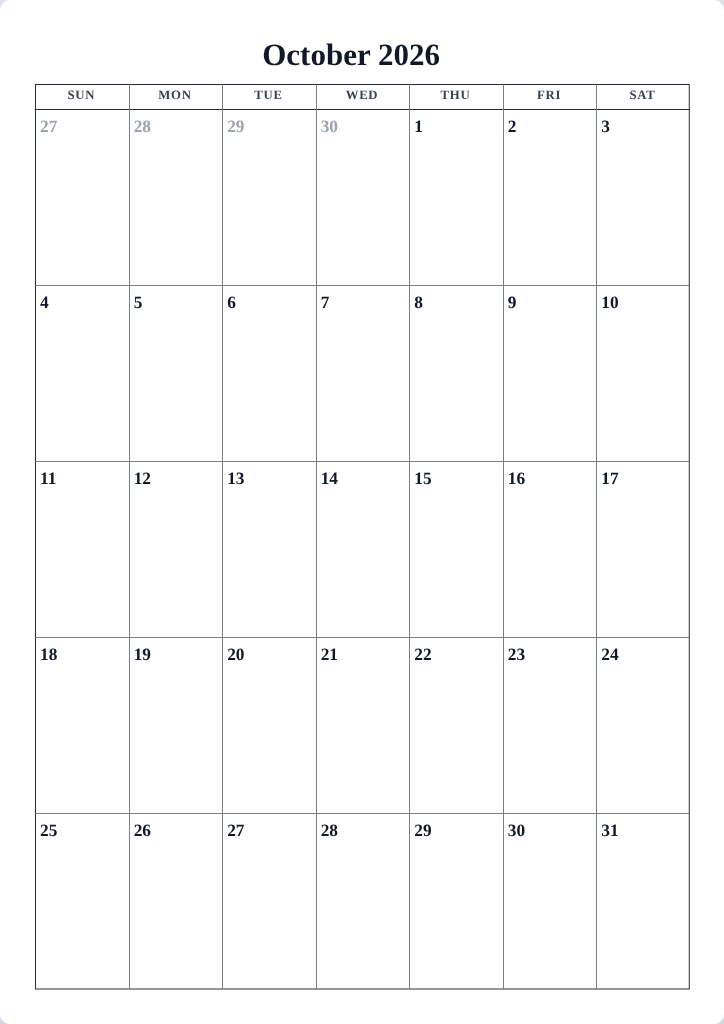
Show or hide adjacent months
- Open the Layout tab.
- Tick or untick Show adjacent months. The setting appears on Monthly, Multi-month and Yearly formats — the ones with month grids.
- Watch the preview: the leading and trailing empty cells fill with the neighboring days, or empty out.
The default on most designs is on, in a muted gray — enough to see where the month begins and ends without competing with the real dates.
Change their color and fade
- Press Edit template on your design and open the Dates tab.
- Find the Adjacent months group at the bottom.
- Set the color — the default gray keeps them quiet; a tint of your accent makes them whisper in color.
- Drag the Intensity slider. Lower intensity fades the numerals toward the paper; many people like them around 40–60% so the current month clearly dominates.
Tips
- For a strict one-month grid — common in office planners — untick Show adjacent months and leave the cells empty.
- Hidden adjacent months are the perfect place to look for the notes-friendly empty cells some people prefer for jotting early plans.
Mini-FAQ
- Why can't I turn adjacent months off on Weekly or Daily?
- Those formats show days, not month grids, so there are no neighboring-month cells to fill.