How to change the heading of a calendar
The heading is the big title at the top of the page — "October 2026" on a monthly calendar, the year on a yearly one. Everything about it is editable in the style editor's Heading content tab.
How to change the heading of a calendar sections
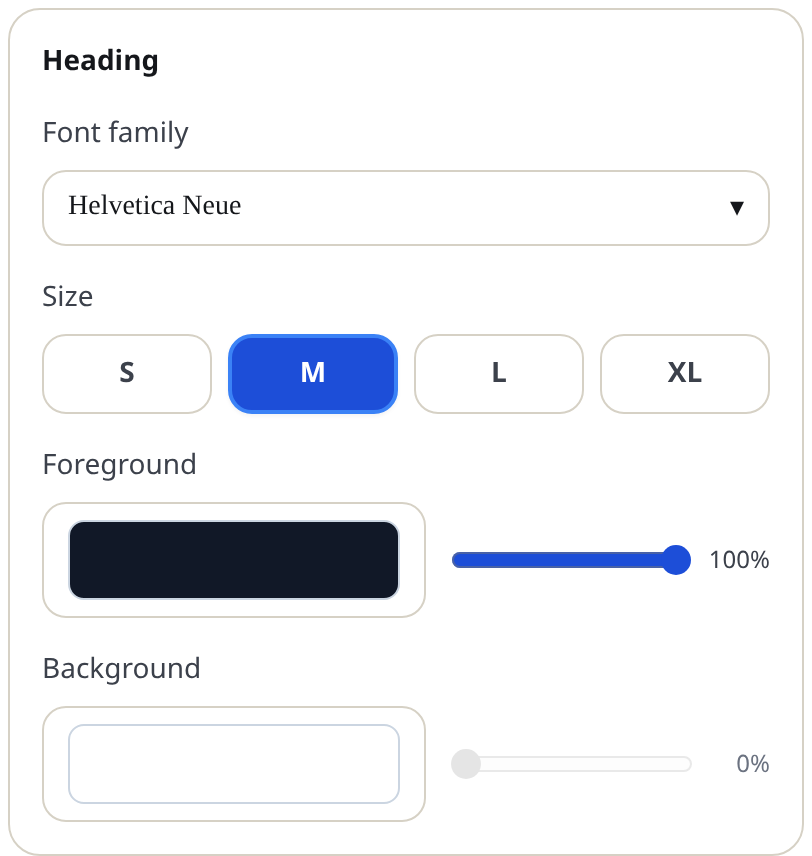
Restyle the heading
- Press Edit template on your design in the Templates tab.
- Open the Heading content tab and find the Heading group.
- Set Font family, Size (S, M, L, XL), Foreground and Background. The background tints the whole title band; white means no fill.
- Use Heading alignment to place the title left, center or right. Centered is the classic wall-calendar look; left-aligned reads more editorial.
Change what the heading says
The heading text itself comes from the calendar — month and year, in your language. Two controls change how it is written:
- Month name format: Short ("Oct") or Full ("October").
- Letter case: Default ("October") or Uppercase ("OCTOBER").
Composed layouts
On Multi-month and Yearly calendars, the Heading content tab also shows Month title size — the size of the month names above each month block, independent of the main heading.
Related alignment controls
Two more alignment settings live on the Frame tab, for the smaller headers inside the page: Month header alignment (the month names on multi-month and yearly pages) and Weekday header alignment (the SUN MON TUE row). Both offer Left, Center and Right.
Tips
- An XL heading with a tinted background turns the title into a banner — striking on yearly overview pages.
- Uppercase plus a condensed font like Bebas Neue is the classic poster pairing. Use Short month names so it fits.
Mini-FAQ
- Can I type my own title, like "Smith Family 2027"?
- Not yet. Headings are generated from the calendar's date and language so they always stay correct.