How to add a notes area to your calendar
A notes area turns a month grid into a single-page planner: one place for the month's reminders, groceries and calls. The generator adds a ruled region beside or below the calendar, in three sizes.
How to add a notes area to your calendar sections
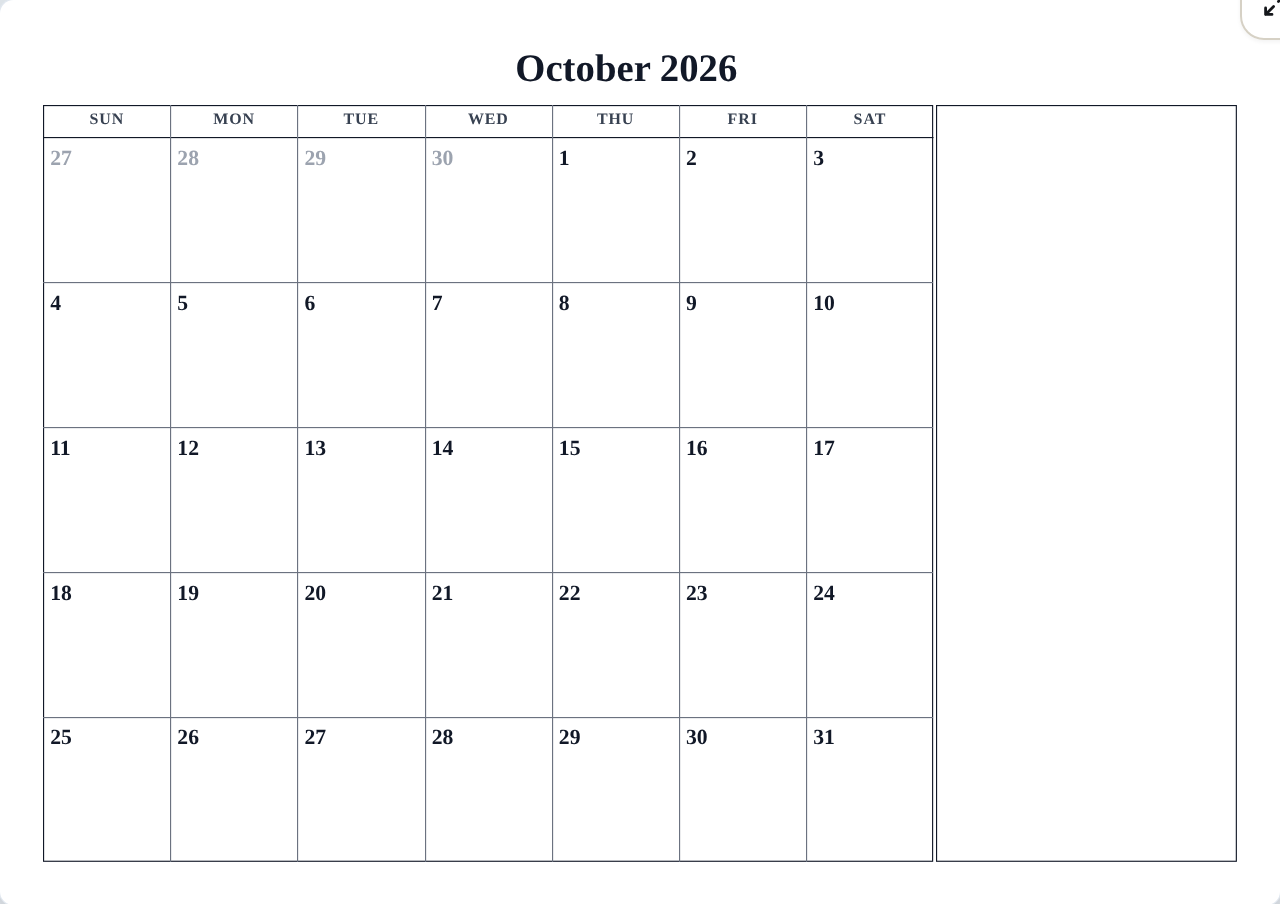
Add notes
- Open the Layout tab.
- Tick Include a Notes area. The notes region appears in the preview immediately.
- Choose a Notes size: Small, Medium or Large. Small keeps the month grid dominant; Large trades grid height for writing room — the usual pick for busy family months.
The notes area's label and ruled lines follow the design's Frame content style, so the text always matches the rest of the calendar.
Add mini-calendars
Tick Include mini-calendar to add small calendars of the neighboring months to the side region:
- With notes on, the notes area shares the region with one mini-calendar.
- With notes off, the region fills with mini-calendars alone — a tidy "this month, next month, last month" strip.
Tips
- Writing a lot by hand? Combine a Large notes area with a blank calendar setup for a clean planning sheet.
- The notes area needs room. If the preview looks cramped, try Landscape or a smaller notes size before changing the design.
Mini-FAQ
- Is the notes area available on every format?
- It appears wherever there is a place for it — month formats and the week-based layouts. If a format has no notes region, the controls are simply unavailable and your preference is kept for later.